
OnlyFans Login Alerts and Session Checks for Subscribers
For most subscribers, an OnlyFans login alert is the first useful signal that someone else may be using the account. The alert itself is simple: the platform emails you when a new device or browser signs in, or when a login comes from a location you have not used before.
Most account trouble on subscription sites does not start with a dramatic hack. It starts with a reused password, a shared laptop, or a session left open on a device you no longer control. onlyfans free accounts and similar listing pages attract a lot of traffic, which means users there are often targeted with lookalike login pages. BestOnlyFans treats session hygiene as a basic part of using the platform, not an advanced security topic.
What a login alert tells you
An alert fires when the platform detects a sign-in from a device or location it does not recognise. It fires for your own new phone just as readily as for a stranger, so the first job is matching the alert to your own activity.
When they do not line up, treat it as unresolved until you have checked your active sessions. Do not click links inside the alert email to reach the site. Open a new tab and type the address yourself, because phishing copies of login pages mimic these emails closely.
If the alert is unfamiliar, act in this order:
- Open the site directly and review active sessions before changing anything.
- Change the account password, then change the password on your email account if it matches.
- End every session you do not recognise, then re-check payment methods for charges you did not make.
Practical tip: keep the alert email. Its timestamp is the reference point you will use when you compare your own browsing history against the sessions list. If you delete it immediately, you lose that anchor.

Reviewing active sessions
Session lists exist so you can see every device currently holding access. Each entry normally shows a device type, a browser, an approximate location, and the last time it was used. Your own phone, laptop, and tablet should all appear and should all look familiar.
Ending a session logs that device out immediately. The owner of that device will need the password again to return, which is why you should change the password in the same sitting. Ending sessions without changing the password only buys time.
Prices on the platform sit in a narrow band, which is useful context when you review charges:
- Paid subscriptions range from $4.99 at the minimum to $49.99 at the maximum.
- Typical paid pages sit between $4.99 and $15.
- The common average falls between $5 and $10.
- There is no base price below $4.99; only promotional first months may dip under it.
- Free pages are simply set to a price of $0 and earn through pay-per-view messages and tips.
- The platform takes 20% of subscriptions, tips, and pay-per-view, so the creator keeps 80%.
- When a creator raises the subscription price, auto-renew stops and existing access lasts until the current paid period ends.
That last point matters for alerts. A renewal you did not expect is sometimes just a price change rather than a compromise. Read the charge before you assume the worst.
A breakdown of warning signs by severity
Not every signal deserves the same response. Sorting them by how much damage they allow keeps you from overreacting to a harmless new phone and underreacting to a changed recovery address. Use the table below as a quick reference when something looks off.
| Signal | Concern level | Why |
|---|---|---|
| New device shown in sessions that matches your own | Low | Expected after a phone upgrade or a new browser |
| Sign-in from a city you visited recently | Low | Location data is approximate and often shows carrier routing |
| Unfamiliar device you cannot identify | Medium | Possible shared device or a session you forgot about |
| Unexpected renewal or tips you did not send | Medium | Could be a price change, could be account access |
| Changed email address or recovery details | High | Blocks your own password reset and locks you out |
| Password changed without your action | High | Direct evidence someone else controls the account |
High-concern items should be handled the same day. Medium items can wait until your next check, but not longer than a week. Low items need no action beyond a note that you saw them.
Strengthening the login itself
Almost every compromise path runs through a password that was reused somewhere else. A password that exists on one account and nowhere else cannot be usefully leaked from another site’s breach. Length matters more than symbol tricks, so a long phrase you can recall beats a short scramble you cannot.
A password manager removes the temptation to reuse. It generates a different string for every account and stores it behind a single strong passphrase. If you only adopt one habit from this article, make it this one.
Two-factor authentication adds a second step at login. Setup order matters more than the specific method:
- Turn on two-factor in account settings and choose an authenticator app over text messages where offered.
- Save the backup or recovery codes somewhere offline, not in the same app.
- Confirm the recovery email address is current and one you can still open.
- Sign out of all other sessions once two-factor is active so every device must re-verify.
After that, a stolen password alone is not enough to reach the account. BestOnlyFans recommends reviewing both settings together, because two-factor on a stale email address provides little protection. For a starting point, onlyfans free accounts collects free pages.
What to do if you are locked out
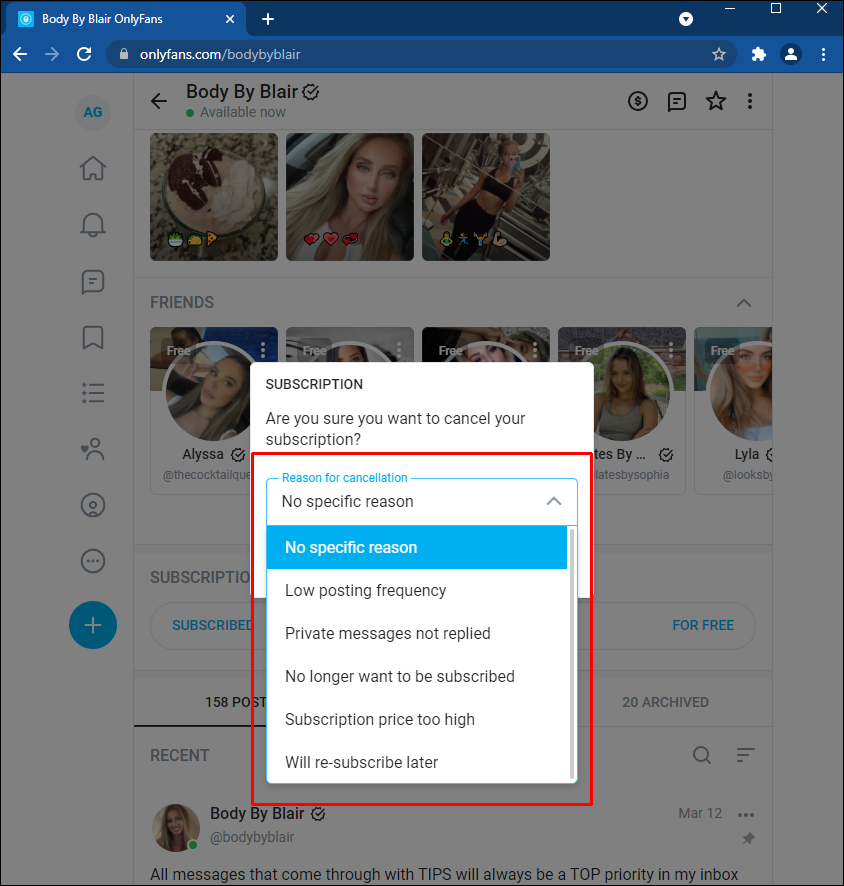
Lockout usually means the recovery email no longer matches what you expect, or the password was changed without your knowledge. Start with the standard reset flow and watch for the confirmation message. If nothing arrives, check spam folders before assuming the address was altered.
When the reset does arrive, reset the password from a device you trust rather than a shared one. Then rebuild the session list from scratch by signing out everywhere else. If the reset never arrives at all, you are dealing with a changed recovery address and will need platform support.
Before contacting support, gather what they will ask for. Avoid these common mistakes:
- Opening multiple support tickets for the same issue, which slows the queue.
- Using a lookalike login page reached from a search ad or a listing site.
- Resetting the password but leaving old sessions active.
- Ignoring the recovery email account, which is often the real entry point.
- Deleting the alert and confirmation emails before support asks for timestamps.
Warning: if the recovery email itself is compromised, every reset attempt gives the other party a fresh notification. Secure that mailbox first, then work on the subscription account.
After a suspected compromise
Order of operations decides whether a fix holds. Working the steps out of sequence often leaves a live session behind that quietly undoes your changes.
- Secure the email account first, with a new password and two-factor enabled.
- Change the subscription account password from a trusted device.
- End every active session, including ones that look like your own.
- Review payment methods and remove any card you do not recognise.
- Review recent charges and flag anything you did not authorise within the platform’s dispute window.
- Re-enable two-factor on the subscription account using the now-secured email.
Payment review is the step most people skip. An attacker with session access can send tips or open pay-per-view messages without touching the password. Those charges look normal in a transaction list unless you know what you actually sent.
Shared devices and browser habits
Staying signed in on a family computer is the most common way a session ends up in unfamiliar hands. The device is trusted, so the session never looks suspicious in the list. Anyone with physical access inherits your logged-in state without needing a password at all.
Saved passwords in a browser add a second layer of exposure. If the browser profile syncs across devices, one compromised profile carries the credential further than you expect. Use a password manager with its own lock rather than browser autofill on any machine you share.
Private browsing is a partial measure, not a solution. It clears local traces when the window closes, but if you sign in during the session it still creates an active session on the server. The protection is on the device, not on the account. BestOnlyFans uses this distinction as a reminder that session review is the only check that covers both cases.
A monthly five-minute account check
Five minutes once a month surfaces problems before they reach your card. The tasks below take less time than reading a single alert email closely, and they cover the paths that matter most.
| Task | What to look for |
|---|---|
| Review active sessions | Any device you cannot name |
| Check recovery email and phone | Values you still control |
| Confirm two-factor is still on | It can be disabled by anyone with access |
| Scan recent charges | Tips or pay-per-view you did not send |
| Check auto-renew settings | Renewals you meant to pause |
| Confirm subscription prices | Changes explain some unexpected charges |
Run this on a fixed date so it becomes routine rather than reactive. Problems found in a monthly check are almost always cheaper to fix than ones found at renewal time. The whole routine depends on one habit: when an alert arrives, do not dismiss it until you have compared it to your session list.
FAQ
Does a login alert always mean someone else signed in?
No. Your own new device, a cleared browser, or a different network can trigger one. Treat it as a prompt to check sessions, not as proof of a breach.
What should I change first after an unfamiliar alert?
Secure the recovery email account first, because it controls the reset flow. Then change the subscription password and end all active sessions.
Can ending sessions alone stop someone from getting back in?
Not reliably. Ended sessions must log in again, but a reused or leaked password still works. Change the password in the same sitting and enable two-factor.
How often should I review active sessions?
Once a month is enough for most users, plus immediately after any alert. If you share a device or use public computers, check more often.